NOS-T Web-based Monitor For Broker
Introduction
The heart of NOS-T is the event broker, a centralized system facilitating the exchange of messages between various applications. As the development of a web-based monitor for NOS-T, our primary goal is to provide a real-time visual interface that allows users to effortlessly view and analyze the broker’s messages. This monitor will not only ensure that stakeholders can instantly understand the flow and volume of communications but also pinpoint areas of inefficiencies, if any. In doing so, we aim to enhance transparency, diagnose potential issues at an early stage, and subsequently, optimize the overall performance of the NOS-T system.
Testbed Overview
The testbed serves as a pivotal component of the project, crafted to streamline testing, monitoring, and data analysis. It encompasses objectives such as offering customization, ensuring user flexibility, and optimizing the workspace for various testing scenarios. Here are its principal features:
Logs Page Overview
The Logs page stands as the hub for viewing and accessing multiple logs simultaneously. It not only presents the logs but also equips users with the tools to modify how they interact with and view these logs.
Log Count
This feature offers users the liberty to dictate the number of logs they wish to view at once, ensuring adaptability to different test cases.
Log View Options
Users can opt between multiple viewing formats:
Infinite Scroll:
Enlarges a log to occupy the entire screen, presenting it in a 1x1 grid view.
Grid:
Organizes logs in a 2 X infinity layout, maximizing screen real estate for observing multiple logs concurrently.
Logs
Exclusively engineered to showcase real-time messages from the broker, the Log page encapsulates the following functionalities:
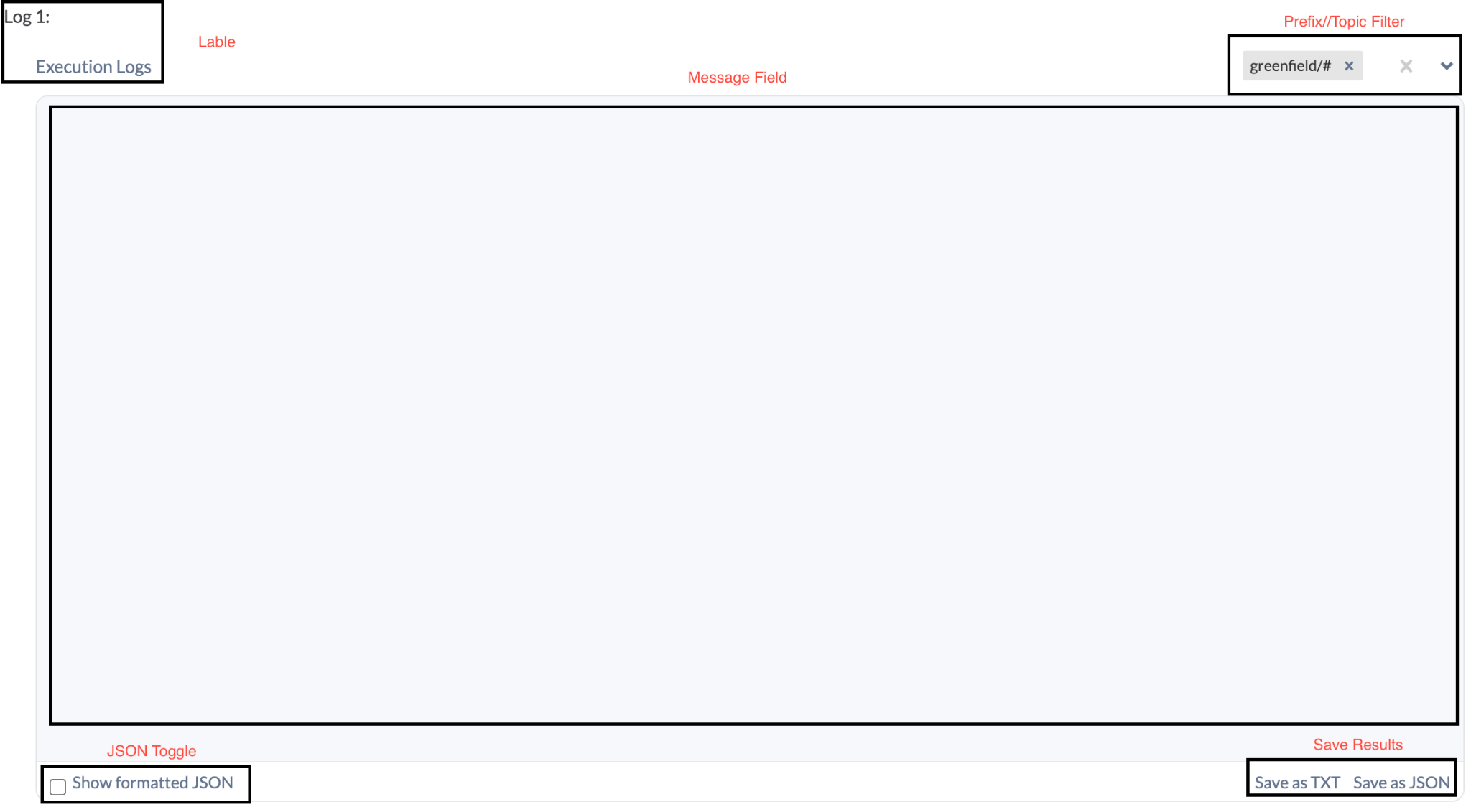
Figure 1: Log Component Isolated Click to enlarge
Label
Every log gets an identifier or name, assisting users in distinguishing among various log feeds.
Message Field
Acts as the viewport for live broker messages corresponding to each log.
Prefix/Topic Filter
Empowers users to establish filters for individual logs. By default, logs are set to “/#”, indicating they’ll capture all messages within that prefix.
JSON Toggle
An intuitive switch allowing the transition between standard text and JSON views, simplifying the reading of structured data.
Save Results
A function to export received log messages either as a TXT or JSON file, indispensable for deeper analysis, troubleshooting, or data dissemination among team members.
Settings Page Overview
Set Prefix
Enter the desired prefix to shape system configurations.
Visual Preferences
Facilitates the switching between dark and light themes for optimal user comfort.
Logs Configuration
Log Count
Define the number of logs you wish to view.
Log View Options
Infinite Scroll
A vertical layout stacking logs atop each other.
Grid View
A 2X inf. layout offering a coherent display of multiple logs.
In conclusion, the testbed has been meticulously designed to bolster the development and tuning of the project components, ensuring they’re primed for the ultimate deployment.
Getting Started
This section elucidates the different test cases undertaken during the project, emphasizing their importance and highlighting key findings and results.
Consumer Instructions
Step 1: Prerequisites
Before initiating the process, ensure that the following prerequisites are met:
Chromium Browser:
The code has dependencies best suited for Chromium-based browsers. Preferred browsers include Chrome, but others like Edge are also supported.
Step 2: Logging into the NOS-T Manager
Navigate to Testbed-manager.mysmce.com
Use the credentials below:
Username: nost-client
Password: nost-2021
After successful login, the main page will be displayed and say connected in green in the upper right corner. If “Closed” appears in the upper right corner, this indicates a network connection issue. In many instances, the IP address might not be registered with the broker. Contact the system administrator for further support.
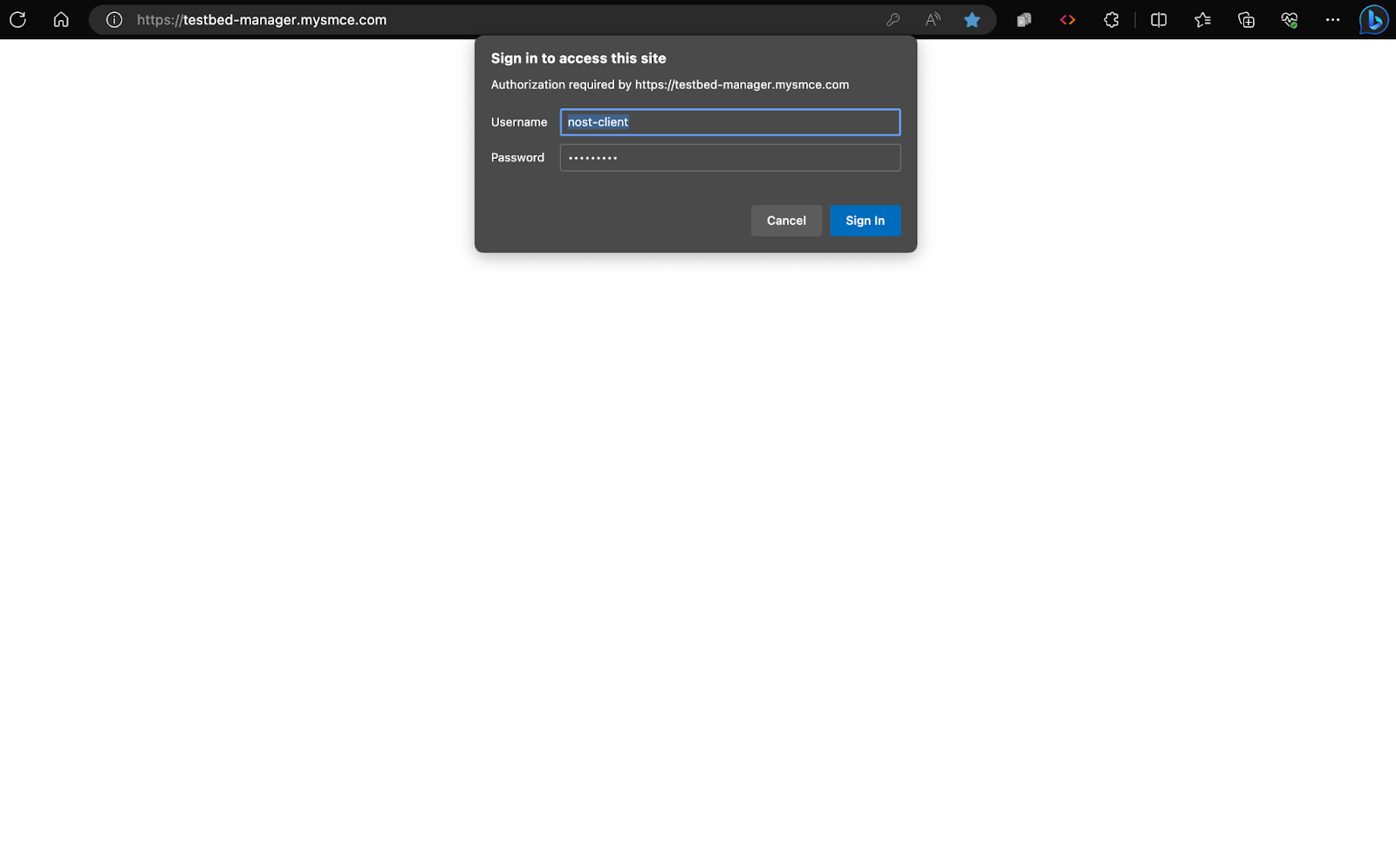
Figure 2: Log In fields Click to enlarge
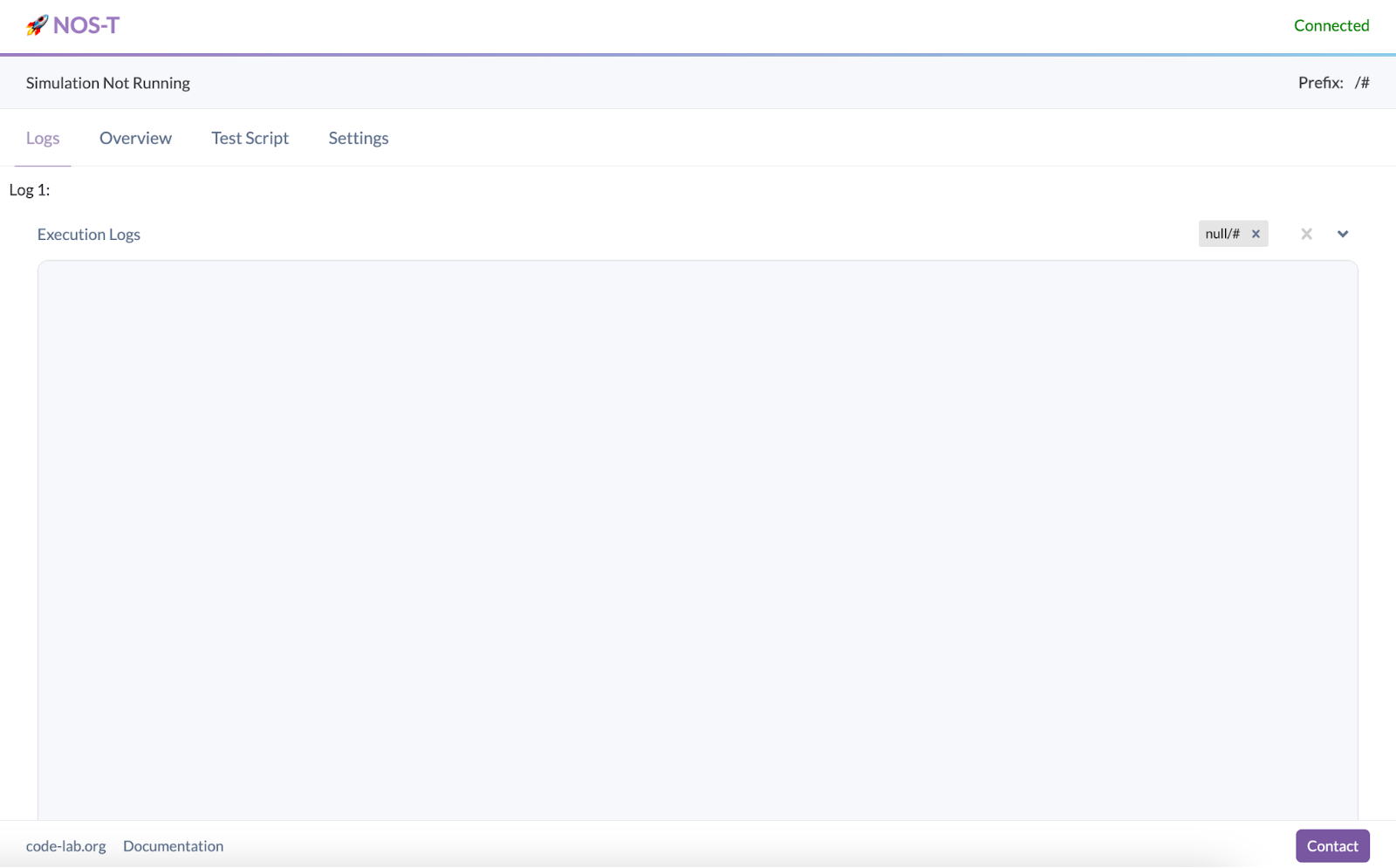
Figure 3: Successful Login With Connection to Broker Click to enlarge
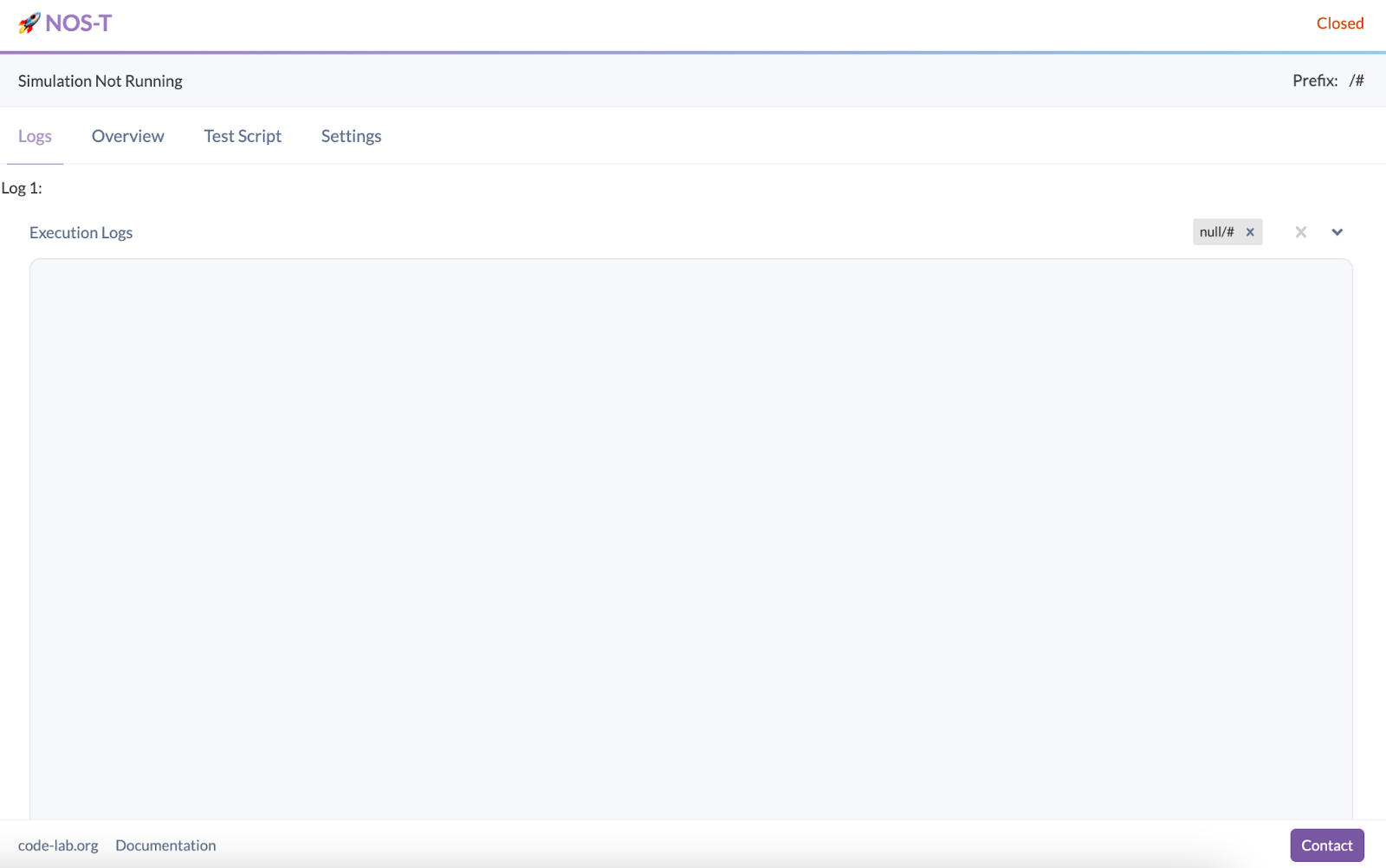
Figure 4: Successful Login Without Connection to Broker Click to enlarge
Setting Your Prefix
Navigate to the “Settings” tab.
Proceed to “Functional Configuration” and adjust the prefix according to your Test Case. For instance, for the ‘fire sat’ test case, set the prefix to ‘greenfield’.
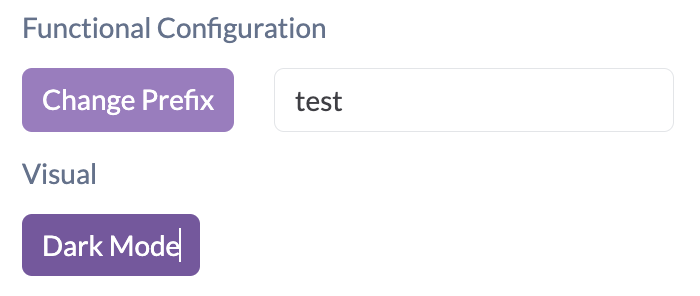
Figure 5: Controls in Setting
Developer Instructions to Load the Docker Images
Step 1: Prerequisites
Ensure the following are installed on your system:
Docker Desktop
This is vital for running containerized applications. Download from the official Docker website and follow the setup instructions based on your operating system.
VS Code
This project utilized the VS Code IDE. It’s recommended for executing the system.
*Visual Studio Code - Code Editing. Redefined*
Chromium Browser
The code has dependencies best suited for Chromium-based browsers. Preferred browsers include Chrome, but others like Edge are also supported.
Step 2: Download the Software
Acquire the NOS-T Manager software following these instructions, which will bundle the essential Docker files and code.
Step 3: Environment Setup
Launch your preferred code editor (Visual Studio Code is recommended) and import the acquired software files.
Step 4: Application Configuration
If the application necessitates any specific configurations, ensure they’re correctly set up. Consult the software’s documentation or README for specific details.
Step 5: Initiate Docker Compose
Open a terminal or command prompt within the software’s root directory (where the docker-compose.yml file is located).
Step 6: Build and Launch the Application
Execute the following command in your terminal:
docker-compose up --build
This command instructs Docker Compose to fetch the necessary images, build the app (if required), and initiate the containers.
Step 7: Access the Software
After a successful start, the application can be accessed via your web browser at https://localhost/ for the NOS-T Manager Interface
Step 8: Engage with the Software
With the application operational, begin exploring its functionalities using the NOS-T Manager Interface or consult available documentation for guidance.
Step 9: Halting the Application
To terminate the application, return to the running Docker Compose terminal and press Ctrl + C. This action will halt and remove the active containers.
Step 10: Cleanup (Optional)
To purge the environment, execute the following in your terminal:
docker-compose down
This action stops and erases the containers, networks, and volumes. It’s useful for system resets, especially in the presence of errors.
Step 11: Execute the Fire Sat Test Case (Optional)
Adjust the prefix in the “Functional Configuration” to align with your Test Case. For the ‘fire sat’ test case, use ‘greenfield’ as your prefix.
In conclusion, you’ve successfully deployed and engaged with the NOS-T Manager software. As you explore, remember to refer to documentation or user guides for insights on specific features and operational commands.
Conclusion
In conclusion, the development of the web-based monitor for the New Observing Strategies Testbed (NOS-T) has been a significant achievement in advancing the goals of NASA’s Earth Science Technology Office Advanced Information Systems Technology program. The monitor provides a real-time visual interface that allows users to efficiently view and analyze the broker’s messages in the event-driven system of NOS-T. This has several important implications:
Enhanced Transparency
The web-based monitor offers stakeholders an unprecedented level of transparency into the flow and volume of communications within the NOS-T system. This transparency is crucial for understanding the system’s behavior and ensuring that all components function optimally.
Early Issue Detection
By providing a real-time view of the broker’s messages, the monitor enables users to identify potential issues and inefficiencies at an early stage. This early detection can lead to timely interventions and improvements, enhancing the overall performance and reliability of the NOS-T system.
Optimization Opportunities
The ability to analyze and export log messages for deeper analysis and troubleshooting allows teams to optimize the performance of NOS-T. By pinpointing areas that require improvement, developers and stakeholders can fine-tune the system for better efficiency.
User Flexibility
The monitor’s customizable features, such as the ability to choose log count and view options, ensure that users can adapt the interface to suit their specific testing scenarios and requirements.
Future
Future work in this area could focus on refining the Manager UI Controller’s features and usability based on user feedback and evolving needs. The goal is to continually enhance the user experience, making it easier and more intuitive for users to interact with the simulation system. Streamlining the UI, improving settings organization, and enhancing interface responsiveness are areas that can be explored.
Expanding the Manager UI Controller’s capabilities by incorporating additional functionalities to meet specific simulation requirements is also important. For example, integrating real-time parameter adjustments during simulations and implementing a user-friendly system for managing simulation presets are potential areas for development.
To ensure inclusivity, accessibility features will be prioritized in future enhancements to make the Manager UI Controller more user-friendly for individuals with diverse needs. Although not essential for current use cases, these features hold the potential to add significant value to new users as the product scales.
To validate these advancements, extensive testing with more NOS systems and a broader user base will be crucial. Gathering feedback from diverse users will help assess the impact and benefits of the new features and ensure they align with the evolving needs of the growing user community.
Regarding Test Scripts, the focus will be on continuous improvement and expansion to meet the demands of complex simulation scenarios. Enhancing the flexibility of Test Scripts will enable users to define and set a broader range of variables, constraints, and simulation conditions.
Future development will involve integrating version control and collaboration tools directly into Test Scripts, enabling teams to work more efficiently, share and manage multiple simulation configurations seamlessly, and foster collaborative contributions to the simulation setup.
To empower users in analyzing and understanding their simulations better, integration with advanced data visualization and analytical tools will be explored. This integration aims to provide users with deeper insights into simulation results and facilitate data-driven decision-making.
Expanding the documentation and community support for Test Scripts will be a focus to encourage users to share their custom scripts and best practices. This collaborative approach will enable the simulation community to grow and benefit from each other’s experiences.
While these features may not be essential for existing use cases, they hold immense potential in scaling the product and attracting new users. Rigorous testing with more NOS systems and diverse simulation scenarios will be conducted to validate their value and refine the features based on real-world use cases.
Regarding the monitor, future work could focus on refining its features and usability based on user feedback and evolving needs. Integrating more advanced analytical tools and visualization techniques will provide deeper insights into the NOS-T system’s behavior.